You have already restarted the router. Double-checked the password. You are practically standing underneath the opener, and the signal bars look fine. And myQ is still spinning, failing, or acting like your WiFi does not exist.
The problem is not always your WiFi password or signal. The right fix depends on where the connection is breaking down, so figure that out before resetting anything.
The problem is not always your WiFi password or signal. A myQ device can fail during setup for several different reasons, and the right fix depends on where the connection is breaking down. The key is figuring out where the connection is failing before you start resetting anything.
Why Is myQ Not Connecting to WiFi?
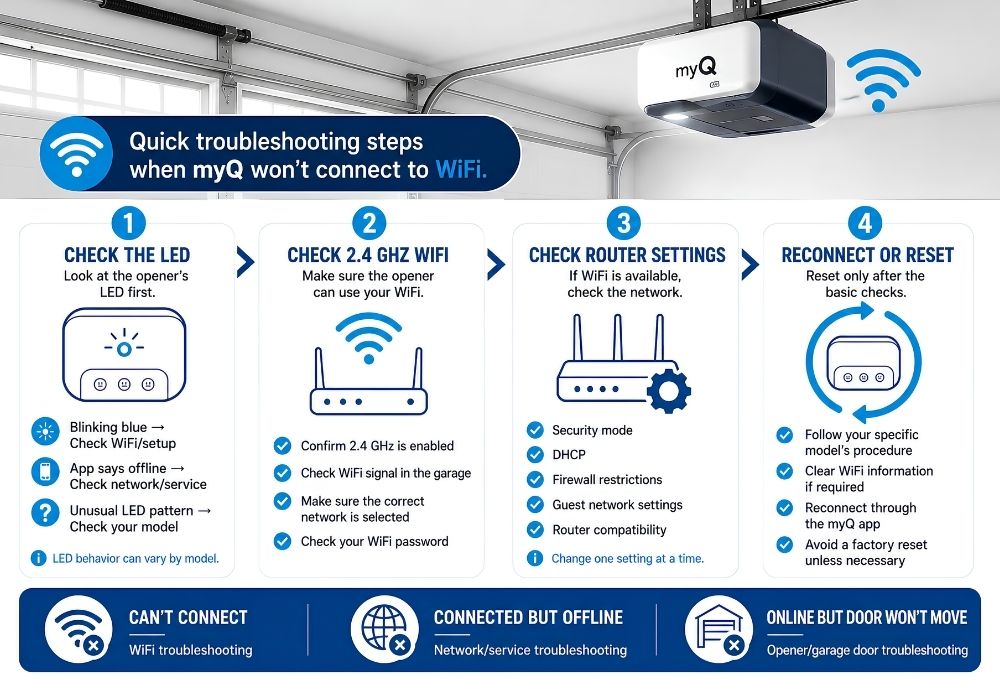
A myQ opener can fail to connect because of the WiFi band, signal strength, saved network information, router settings, or the opener itself. The LED can help narrow down which problem you are dealing with.
Start with the LED before resetting anything.
Check Your myQ LED Before You Do Anything Else
Your myQ LED can give you an early clue about where the connection problem may be. Checking it first can help narrow down which troubleshooting path makes sense.
Look at the light right now and find your situation in the table below.
| LED Status | What It May Indicate | Where to Go Next |
| Blinking blue slowly | WiFi setup or connection may not be complete | 2.4 GHz and router settings |
| Blinking blue rapidly | Device may be in WiFi setup mode | Manual connection section |
| Solid blue, app shows offline | Device may be connected to WiFi but unable to communicate with the myQ service | Offline section |
| Red/orange or unusual pattern | May indicate a device-specific fault or reset state | Model-specific troubleshooting |
| No light | May indicate a power issue | Check power and model-specific status indicators |
LED behavior can vary by opener and myQ device model. Use the table as a starting point, then confirm the meaning for your specific model if the pattern does not match.
Does myQ Require 2.4 GHz WiFi?
For most myQ garage door openers and Smart Garage Hubs, the WiFi connection needs to use the 2.4 GHz band. This is one of the first things to check when myQ refuses to connect, especially if your phone and other devices have no trouble using the same WiFi network.
The confusing part is that many modern routers use both 2.4 GHz and 5 GHz on the same network. Your phone may connect to whichever band gives it the best performance, while your garage door opener may need the 2.4 GHz connection. So having a strong WiFi signal does not necessarily mean the opener can use that network.
Check That 2.4 GHz WiFi Is Enabled
Before changing router settings, make sure your 2.4 GHz network is actually turned on.
If your router displays separate networks, you may see names such as:
- HomeWiFi-2.4
- HomeWiFi-5G
For a compatible myQ opener or hub, select the 2.4 GHz network during WiFi setup.
If your router shows only one network name, don’t assume 2.4 GHz is unavailable. Many newer routers combine both frequency bands under a single WiFi name. The router decides which band each device uses in the background.
What If 2.4 GHz and 5 GHz Use the Same Network Name?
You may not need to split the networks.
First, open your router’s app or settings and look for options such as:
- Smart Connect
- Band Steering
- Unified WiFi
- Wireless or WiFi Bands
Make sure the 2.4 GHz band is enabled.
If your router allows you to temporarily separate the two bands, give the 2.4 GHz network its own name and use it when connecting the myQ device. This makes troubleshooting easier because you know which band the opener is using.
Router settings vary by manufacturer, so only change these options if you know what they control.
Having Strong WiFi Doesn’t Always Mean the Opener Can Connect
This is where things can get confusing.
You might have excellent WiFi on your phone while standing in the garage, but that doesn’t automatically mean the opener has a usable connection. The opener may be receiving a weak or unstable signal, even when your phone appears to have a strong connection.
If possible, check the WiFi connection close to the garage door opener rather than checking the signal from another room.
If the signal is weak, try moving the router or adding a compatible WiFi extender or mesh point closer to the garage. Avoid placing networking equipment behind large appliances, metal objects, or other materials that can interfere with the signal.
Using a Mesh WiFi System?
Mesh WiFi can make the 2.4 GHz issue less obvious because the system normally presents one network name throughout the home.
You don’t necessarily need to disable 5 GHz or permanently separate your networks. Start by checking the mesh system’s settings to confirm that 2.4 GHz is enabled.
If the myQ setup still cannot find or connect to the network, check whether your mesh system has a temporary setup option, band-steering control, or another setting recommended by the router manufacturer for connecting older or 2.4 GHz-only devices.
Because these controls differ between mesh systems, avoid following instructions meant for a different router model.
Your Phone May Be on a Different Band
Your phone and garage door opener do not necessarily use the same WiFi frequency just because they show the same network name.
For troubleshooting, check your phone’s WiFi details and, if your router provides separate network names, connect your phone to the 2.4 GHz network before starting the myQ setup again.
On some phones and routers, the exact frequency information is not displayed clearly. In that situation, your router’s app or administration page is usually the better place to confirm which bands are active.
What If 2.4 GHz Is Enabled but myQ Still Won’t Connect?
If you’ve confirmed that 2.4 GHz is available and the signal reaches the garage, check the basic connection details before resetting the opener.
- WiFi password: Make sure the password entered during setup is correct.
- Network security: Confirm that the router uses a security configuration supported by your myQ device.
- Network name: If the SSID is hidden, temporarily making it visible can simplify setup.
- Signal stability: Make sure the connection is stable in the garage.
- Previous network information: If you recently changed your router, WiFi name, or password, the opener may still have the old network information saved.
If all of these check out, the problem may be with the opener’s stored WiFi configuration rather than your internet connection. That’s when reconnecting the device to WiFi or following the model-specific reset procedure becomes the next step.
Technician tip: Don’t factory-reset the opener just because myQ won’t connect. First determine whether the problem is the WiFi band, signal, router settings, or saved network information. A reset should be a troubleshooting step, not the first thing you try.
myQ Connects to WiFi but Shows Offline
Sometimes the WiFi connection itself is not the problem. If your garage door opener successfully connects to your home network but the myQ app still shows it as offline, the issue may be occurring after the opener reaches your router.
Start with these checks before resetting the opener:
- Internet connection: Make sure your home internet is working normally on other devices.
- Recent network changes: If you recently changed your WiFi name, password, router, or internet provider, the opener may need to be reconnected.
- Network restrictions: Firewall or router settings can prevent the opener from communicating with the myQ service even after it joins your WiFi network.
- myQ service status: Check for a service outage before changing router settings.
Does the Connection Drop When the Garage Door Closes?
If myQ works while the garage door is open but goes offline after the door closes, the door itself may be weakening an already marginal WiFi signal.
Check that the opener’s antenna wire hangs straight down from the motor unit rather than being tucked into the ceiling or track. If the signal remains unreliable, improving WiFi coverage inside the garage may help.
Check for a myQ Service Outage
If the opener appears connected to WiFi but the myQ app still shows it as offline, check the current myQ service status before changing router settings or resetting the opener.
If there is a service disruption, resetting the opener will not resolve the problem.
myQ Is Connected, but the Garage Door Won’t Move
If the myQ app shows the opener online but the door does not respond, the problem may not be WiFi.
- Check whether the opener responds to the wall control or remote.
- Check for a locked door, obstruction, disconnected trolley, or opener fault.
- If the opener has power and the door operates manually but the opener will not move it, the issue may be with the opener or another garage door component.
- Do not keep changing WiFi settings when the device is already online.
Can’t connect → WiFi troubleshooting
Connected but offline → network or myQ service troubleshooting
Connected and online but door won’t move → garage door or opener troubleshooting
Check Your Router Settings
If myQ still won’t connect after the 2.4 GHz and basic signal checks, review these router settings before moving to advanced troubleshooting.
Check Your Router’s Security Mode
Your router’s security mode can affect whether a myQ opener can join the network. Check that the security configuration is supported by your specific myQ device.
myQ supports compatible WPA2 Personal and WPA3 Personal configurations. If your router is using a different or restrictive security configuration, check the available wireless security options and use a supported configuration for your device. Then try the myQ setup again.
Tip: Avoid changing advanced router settings unnecessarily. A security change can affect other devices connected to your home network.
Check Your WiFi Password
A WiFi password can be entered incorrectly even when it looks right, especially if it is long or contains characters that are easy to mistype. Re-enter the password carefully during setup and make sure you’re connecting to the intended 2.4 GHz network.
If you’ve recently changed your WiFi password, remember that the opener may still have the previous network information stored. Reconnecting the opener to WiFi may be necessary after a password change.
Check MAC Address Filtering
Some routers use MAC address filtering to limit which devices can join the network. If this feature is enabled, it may prevent the myQ device from connecting unless the device is allowed by the router. If you use MAC filtering, check your router’s approved-device list and confirm that the opener or hub is permitted to connect.
Check DHCP and Network Restrictions
Your router needs to assign the opener an IP address after it joins the network. If DHCP is restricted or the router has trouble assigning addresses, the connection may not complete.
Restart the router and try again. If multiple devices are having connection problems, check the DHCP settings.
Avoid Using a Restricted Guest Network
Guest networks can use additional restrictions that prevent connected devices from communicating normally with other network services. If you’re trying to connect a myQ opener, use your regular home WiFi network rather than a restricted guest network when possible.
Advanced Network Issues
If myQ still will not connect after the WiFi and router checks above, a deeper network issue may be involved. These problems are less common, so use this section only as a last resort.
DHCP or IP Address Problems
DHCP allows your router to assign an IP address to the myQ device. If the router is having trouble assigning an address, the device may not complete its connection.
Restart the router and try again. If other smart-home devices are also having trouble connecting, check whether DHCP is enabled.
You generally do not need to assign a static IP just because myQ goes offline.
Firewall and Network Restrictions
Some routers use firewall, access-control, or device-isolation settings that can prevent connected devices from communicating with online services.
If your opener joins WiFi but repeatedly goes offline, check whether your router has recently had any security or access settings changed. Avoid disabling important security features unless you know what they do. If you are unsure, your router manufacturer or internet provider can help identify the setting.
Router Compatibility Issues
Some routers and mesh systems can cause myQ devices to disconnect or have trouble maintaining a connection.
If myQ connects successfully but repeatedly goes offline, check whether your router or mesh system has known compatibility issues before changing several advanced settings at once. Keeping the router firmware updated is also a good first step.
T-Mobile Home Internet and myQ
If you use T-Mobile Home Internet and myQ connects to WiFi but remains offline, do not immediately assume the opener is the problem.
First, confirm that the basic myQ network requirements are met and that your internet connection is working normally. If the problem continues, contact T-Mobile or your router manufacturer for help checking the network configuration.
When to Stop Changing Router Settings
If your other devices work normally but myQ still refuses to connect, avoid changing multiple router settings at once.
Make one change at a time, test the opener, and note what happened. This makes it easier to identify which setting affected the connection.
If the basic network checks and reasonable router troubleshooting do not resolve the issue, move on to the myQ WiFi reconnection and device-specific troubleshooting steps rather than continuing to change advanced router settings.
Technician tip: If myQ worked before and stopped after you changed your WiFi name, password, or router, reconnect the opener to the updated network before changing advanced settings.
Before Resetting: Check for Battery Backup
If your opener has battery backup, disconnect it according to the manufacturer’s instructions before performing a power-related reset. Otherwise, the battery may continue powering the opener after it is unplugged.
Unplug the opener, wait about 30 seconds, then continue with the model-specific reset procedure. Reconnect the battery backup once the myQ connection is restored.
Technician tip: If a reset does not appear to work, check whether the battery backup is still powering the opener.
How to Reset myQ WiFi Connection
Do not jump straight to a reset without working through the 2.4GHz check and router settings above. A reset clears the stored credentials but does not fix the underlying network issue. If the network problem is still there, myQ will fail again immediately after the reset.
myQ Smart Garage Hub
The myQ Smart Garage Hub has a different reset and WiFi-reconnection procedure from built-in WiFi garage door openers. Reset steps can vary depending on whether you are clearing WiFi settings or performing a factory reset. Before resetting the hub, follow the procedure for your specific model. Once the WiFi settings have been cleared, reconnect the hub through the myQ app using your compatible 2.4 GHz WiFi network.
Technician tip: Avoid performing a factory reset unless the standard WiFi reconnection steps have failed, since a factory reset can remove stored device settings.
Reconnect or Reset myQ WiFi
Reset and WiFi-clearing procedures vary by LiftMaster model. Some models allow you to clear saved WiFi information without performing a full factory reset, while a factory reset may also erase programmed remotes, keypads, myQ devices, or HomeLink connections.
Before holding the Learn button or performing any reset, follow the procedure for your specific LiftMaster model. Do not assume that the same button sequence works across all LiftMaster openers.
Once the WiFi settings have been cleared, open the myQ app and follow the Add Device or reconnect process using your compatible 2.4 GHz WiFi network.
For the exact reset procedure, see our LiftMaster garage door opener reset guide.
Technician tip: Do not assume that a 10-second Learn-button hold performs the same reset on every LiftMaster opener. Button functions and reset procedures can vary by model.
Chamberlain Opener Reset
Chamberlain opener reset and WiFi-reconnection procedures also vary by model. Some models provide a way to clear WiFi information without performing a full factory reset, while other reset procedures can remove programmed devices or accessories.
Before pressing or holding the Learn button, follow the reset or WiFi-reconnection procedure for your specific Chamberlain model. If the instructions call for a factory reset, make sure you understand which programmed devices or settings may be removed before proceeding.
Once the appropriate WiFi settings have been cleared, use the myQ app to reconnect the opener to your compatible 2.4 GHz WiFi network.
Technician tip: If your Chamberlain opener is already connected to WiFi but the myQ app shows it as offline, troubleshoot the network and myQ connection first. Do not perform a factory reset unless the model-specific troubleshooting procedure calls for it.
iPhone Setup: Check myQ’s Network Permissions
If you’re setting up myQ from an iPhone and the app cannot discover the opener or hub, check the permissions that allow myQ to find devices on your local network.
On current iOS versions, apps that need to discover devices on your network require Local Network permission. Apple documents this under Settings → Privacy & Security → Local Network.
For myQ specifically, Chamberlain’s current instructions also direct Apple users to enable Home Data when the app reports that it is needed to discover a myQ device.
If myQ still cannot discover the device after enabling these permissions, return to the WiFi and LED troubleshooting steps rather than changing unrelated iPhone privacy settings.
Technician tip: If the myQ device is broadcasting but does not appear during setup, check the app’s network permissions before resetting the opener.
Android users: If myQ cannot discover the opener during setup, make sure location services are enabled. Chamberlain currently lists this as a requirement for the Discovered Devices function.
Alternative WiFi Setup When the myQ App Fails
If the standard myQ app setup does not work, some WiFi-enabled garage door openers support an alternative setup method through the opener’s temporary WiFi network. Chamberlain recommends using this method when in-app setup has failed.
First, put the opener into WiFi setup mode using the procedure for your model. On supported openers, the blue LED will begin blinking when the device is ready.
On your phone:
- Open WiFi settings and look for a temporary network beginning with MYQ.
- Connect to that network.
- Open your phone’s web browser and go to setup.myqdevice.com.
- Follow the on-screen instructions to select your home WiFi network and enter its password.
- Wait for the opener to complete the connection. Chamberlain indicates that a successful connection is confirmed by a solid green LED on supported models.
If setup.myqdevice.com does not load, don’t assume the same troubleshooting steps apply to every myQ model. Check the instructions for your specific opener or hub before trying another local setup address.
Technician tip: Use manual setup as an alternative to the app when the supported procedure for your opener calls for it. If it also fails, go back to the WiFi requirements, router settings, and LED status rather than repeatedly restarting the setup process.
myQ Not Connecting After Changing Router or Password
When you change your router or update your WiFi password, myQ goes offline. That is expected. The stored credentials no longer match.
When you change your router or WiFi password, the opener may still have the old network information saved. Reconnect the opener using the model-specific WiFi procedure and enter the new network details.
LiftMaster myQ Troubleshooting
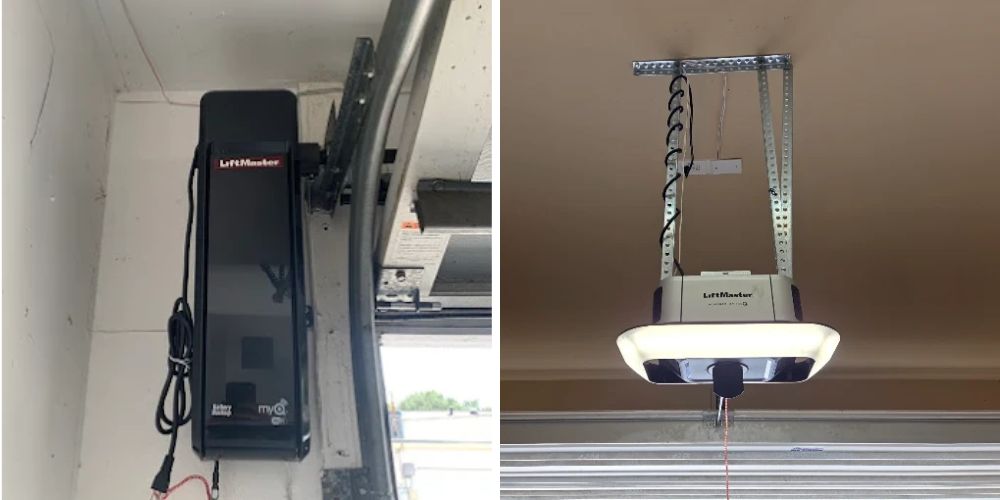
LiftMaster openers with built-in myQ have the WiFi hardware inside the motor unit, unlike a standalone myQ Smart Garage Hub. That means a few physical checks are worth making before you reset anything.
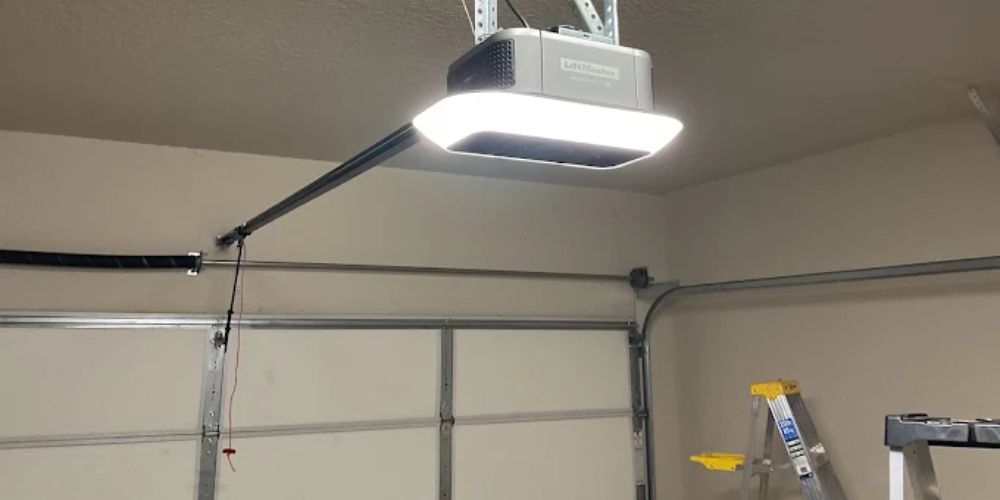
First, check the antenna wire. It should hang straight down from the back of the motor unit. If it has been pushed up into the ceiling, tucked around the opener, or folded over, the WiFi signal may be weaker than expected. Straightening the antenna is a simple first step for intermittent connection problems.
If the WiFi issue continues, follow the model-specific reset or WiFi-clearing procedure for your LiftMaster opener. Do not assume the same button sequence works across every model, since reset functions can vary.
If the opener connects to WiFi but still does not operate the garage door correctly, the problem may be with the opener or another garage door component rather than the WiFi connection. LiftMaster garage door troubleshooting can help identify problems beyond the WiFi connection.
Technician tip: Check the antenna and WiFi connection before resetting the opener. A reset will not fix a physical opener fault or a weak WiFi signal.
Chamberlain myQ Not Connecting to WiFi
Chamberlain and LiftMaster use the myQ platform, so the same basic troubleshooting steps apply to both. Start with the 2.4 GHz WiFi connection, router settings, signal strength, and the device’s LED status before attempting a reset.
If your Chamberlain opener still will not connect after checking these basics, follow the model-specific WiFi reconnection or reset procedure. Do not assume the same button sequence works across every Chamberlain model.
If the opener connects to WiFi but is showing fault codes or the garage door is not operating correctly, the problem may be with the opener rather than the WiFi connection. Our common garage door opener problems guide covers those issues in more detail.
Technician tip: If the opener is already connected to WiFi but the myQ app shows it as offline, troubleshoot the network connection first rather than performing a factory reset.
When to Call a Professional
If the opener or hub still will not connect after the network and model-specific troubleshooting steps, the WiFi hardware or control board may need to be inspected. A hardware problem cannot be fixed through normal WiFi setup or resetting.
If you’re in San Antonio and the problem still isn’t resolved, Mojo Garage Door Service can inspect the opener and garage door system.
Conclusion
When myQ will not connect to WiFi, start by identifying where the connection is failing. Check the LED, confirm the 2.4 GHz network, and verify the basic router settings before resetting the opener.
If those steps do not solve the problem, follow the model-specific WiFi reconnection or reset procedure. If myQ is online but the door still will not move, troubleshoot the opener or garage door system instead.
FAQs
Why won’t myQ connect to my WiFi?
Start by confirming that your myQ device can use the 2.4 GHz WiFi network. Then check the password, basic router settings, and signal strength. If it still will not connect, follow the model-specific WiFi reconnection procedure.
How do I get myQ to reconnect to WiFi?
Follow the WiFi reconnection procedure for your specific myQ, LiftMaster, Chamberlain, or Smart Garage Hub model. After clearing the saved WiFi information, reconnect through the myQ app using your 2.4 GHz network.
How do I get my myQ garage door opener back online?
Start with a power cycle and check your internet connection. If the opener appears connected to WiFi but the app shows it offline, check the myQ service status and router configuration before resetting the device.
How do I reset myQ garage door opener WiFi?
Reset procedures vary by model. Some devices allow you to clear saved WiFi information without a factory reset, while others may remove programmed accessories. Follow the procedure for your specific model before resetting.
Why is my myQ blinking blue but not connecting?
Blinking blue can indicate WiFi setup or connection activity, depending on the model. Check your 2.4 GHz network, WiFi password, signal strength, and router settings first.
Does myQ work with 5GHz WiFi?
Most compatible myQ WiFi devices require a 2.4 GHz connection for setup and operation. Check your specific model if you’re unsure.
Does myQ work with WPA3 routers?
Compatibility depends on the myQ device and router configuration. Check your device requirements and use a supported security mode rather than assuming WPA3-only will work.
Why does myQ connect to WiFi but still show offline in the app?
The opener may have joined your WiFi but still be unable to communicate with the myQ service. Check your internet connection, router restrictions, and myQ service status before resetting the opener.