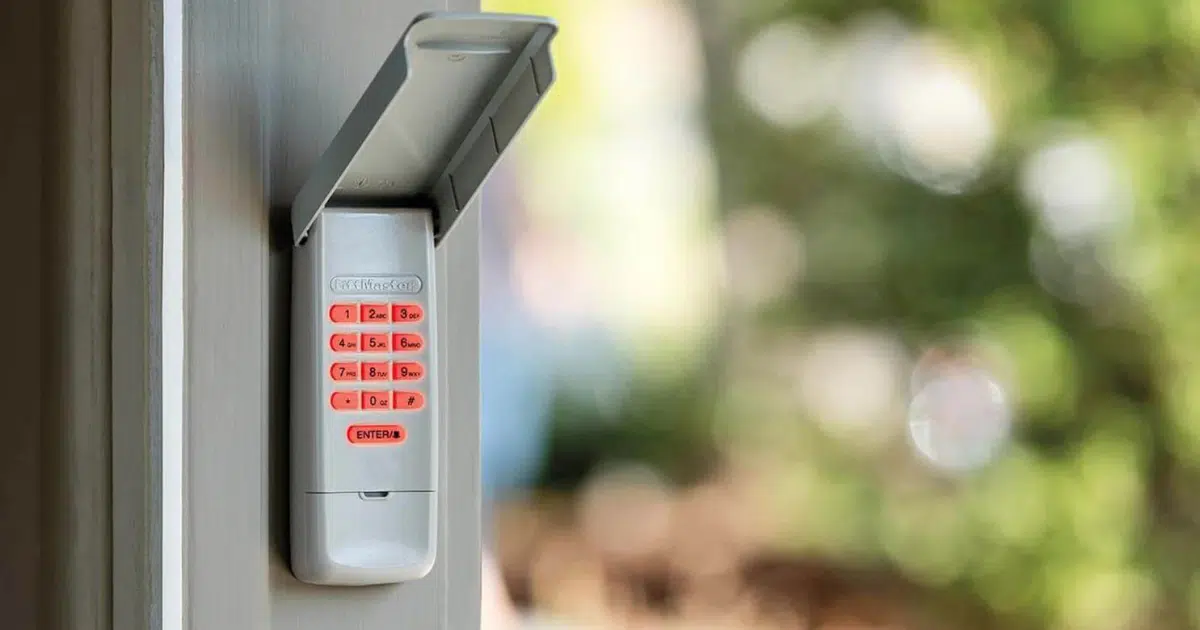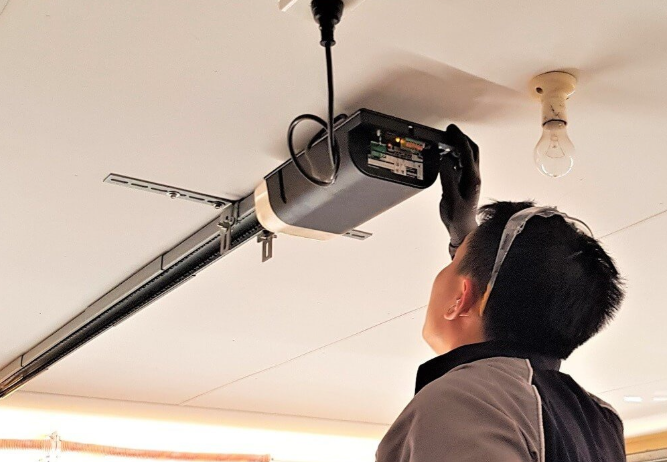
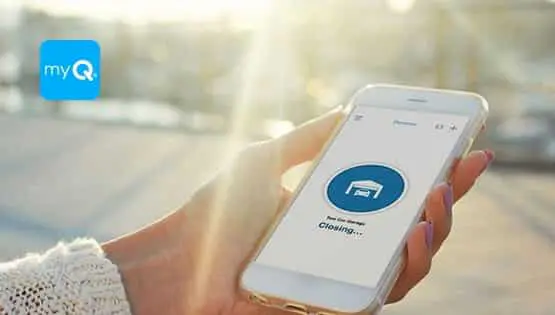
After a reset, it is common for a LiftMaster garage door opener to keep working from the wall button and remote, while myQ suddenly shows offline or stops updating door status. That disconnect can be confusing, especially when the door itself seems to be operating normally, but app control is gone.
This usually happens because the reset breaks the connection between the opener, your Wi-Fi network, and the myQ app profile. Reconnecting restores that link and brings app control back, as long as the setup is done in the right order and the connection is stable.
Quick myQ Reconnect Checklist Before You Start
Start with the basics. These prevent most reconnect failures and save a lot of time.
- Wi-Fi name correct
- Wi-Fi password correct
- Phone on the same Wi-Fi
- Router restarted once
- Opener powered on
- myQ app updated
If the opener is not responding to the wall button, handle that first. myQ cannot control an opener that is not running correctly.
If your opener is still acting unpredictably overall after the reset, read How to Reset a LiftMaster Garage Door Opener (Step-by-Step).
Confirm Your LiftMaster Opener Supports myQ
Not every LiftMaster opener connects the same way. Many newer units have built-in myQ. Some older setups use a separate myQ hub or bridge that connects to your router and then talks to the opener.
Look for clues that your opener has built-in myQ:
- myQ logo on opener
- Wi-Fi indicator light
- Dedicated Wi-Fi button
- Setup label on the housing
If you have a separate hub, look for:
- The hub has a power light
- Hub near router
- Hub linked in app
If you are not sure which type you have, do not worry. The steps below still work as a general path, but the hub-based system may include an extra step where the hub is the device that joins your Wi-Fi.
Step 1: Check Wi-Fi Signal Strength in the Garage
myQ needs a steady connection. Many garages have weak Wi-Fi because the router is inside the home, and the garage is at the far edge of coverage. In many San Antonio homes, thick walls, metal garage doors, and distance can quickly reduce the signal.
Fast signal checks:
- Phone shows strong Wi-Fi
- Web page loads quickly
- No frequent dropouts
If your Wi-Fi is weak, you may be able to connect during setup but lose the connection later. That is why checking the signal first is important. If your signal is weak near the opener, consider:
- Move the router closer
- Add mesh node
- Add a range extender
- Adjust router placement
A simple improvement, like placing a mesh point closer to the garage, often solves repeated “offline” problems in the long term. Mesh Wi-Fi extends coverage using multiple nodes, which can stabilize connectivity in edge areas like garages.
Step 2: Update the myQ App and Your Phone Settings
Before you begin reconnecting, make sure your app is current. Updates can improve device detection and connection stability.
Also, check phone settings that may affect setup:
- Bluetooth enabled
- Location allowed
- Local network allowed
- Wi-Fi enabled
Some phones require location or local network permission during setup because the app needs to detect nearby devices and temporarily set up networks.
If permissions are blocked, the app might fail to find the opener even if the opener is in setup mode.
Step 3: Put the Opener Into Wi-Fi Setup Mode
After a reset, the garage door opener may need to enter Wi-Fi setup mode again. The exact method depends on the model, but most LiftMaster openers have a Wi-Fi button, a setup button, or a wall-control menu option.
Common approach:
- Locate the Wi-Fi button
- Press and hold
- Wait for the blinking light
- Release and proceed
What you are looking for is a blinking Wi-Fi indicator light. That blinking light usually means the opener is ready to accept Wi-Fi setup.
If you have a wall control with a screen, it may have a menu option for Wi-Fi setup. If your wall control is very simple, the opener itself usually has a button method.
Stand close to the opener during this step. If you start setup mode and then walk away for several minutes, it may time out and stop broadcasting its setup signal.
Step 4: Reconnect the Opener in the myQ App
Once the opener is in setup mode, open the myQ app and begin the reconnect process. In many versions of the app, this looks like “add device” even though you are reconnecting.
General flow:
- Open myQ app
- Add a new device
- Select garage opener
- Follow the on-screen steps
- Select your Wi-Fi name
- Enter Wi-Fi password
- Confirm connection
During setup, the app may ask you to connect your phone to a temporary network created by the opener. If it does, follow the prompts carefully:
- Join the setup network
- Return to myQ app
- Continue setup steps
After the app completes setup, you should see the opener listed with a live status.
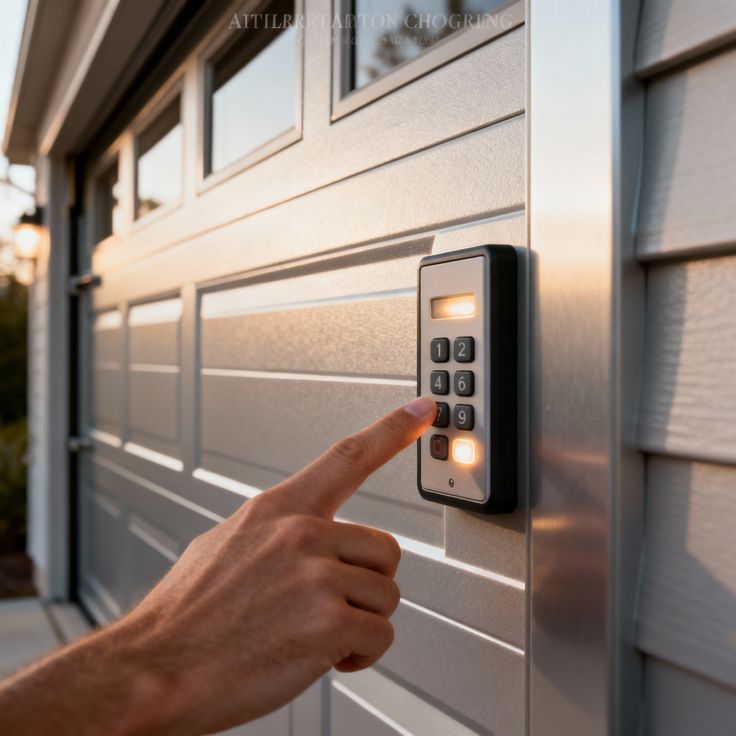
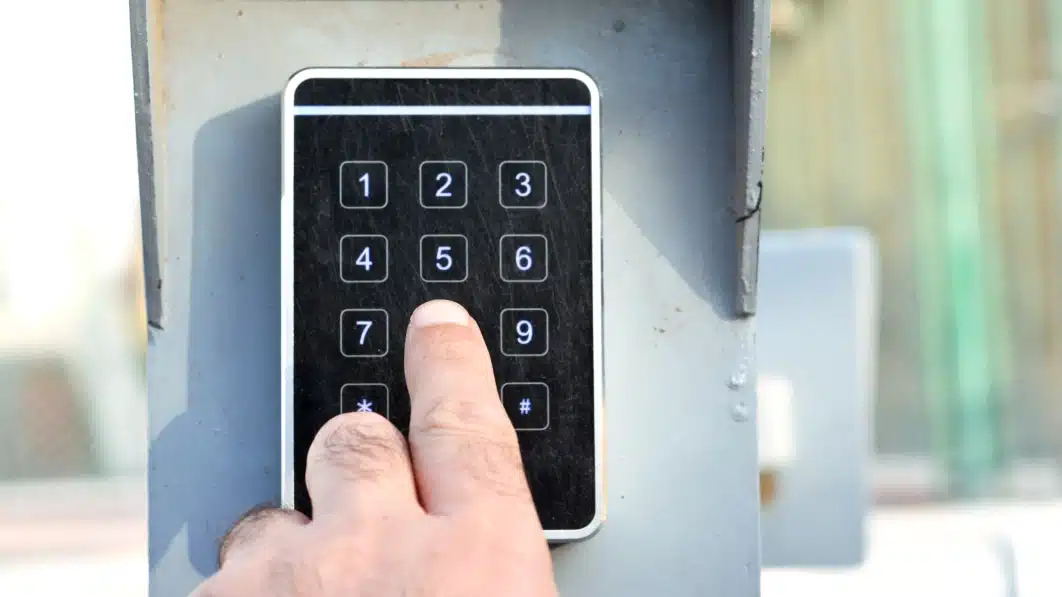
If you use myQ smart features, such as video or keypad access, this Medium resource can help you confirm the setup details and security settings after reconnecting.
Step 5: Confirm Live Control and Live Status
Do not stop at “connected.” Test it. A connection that only half works can be confusing later.
Test sequence:
- Tap open in the app
- Confirm the door moves
- Tap close in the app
- Confirm the door moves
- Confirm status updates
If the door moves but the status does not update, the system may be connected but not communicating reliably. That often points to weak Wi-Fi in the garage.
If your remote or keypad stopped working after the reset, too, those are separate pairings, and read How to Reprogram a LiftMaster Remote After a Reset?.
If myQ Still Shows Offline, Try These Fixes
If myQ reconnect does not work, the cause is usually one of a few predictable issues. Work through these one by one. Most homeowners find the answer in this section.
Restart the Router and Opener
Basic restarts clear many network glitches.
- Unplug router
- Wait 30 seconds
- Plug router back in
- Power cycle opener
Wait until the router is fully online again before you retry setup.
Confirm You Are Using 2.4 GHz Wi-Fi
Many garage door openers connect best on 2.4 GHz Wi-Fi. If your router has both 2.4 and 5 GHz under one name, setup can sometimes struggle.
Solutions:
- Use a 2.4 GHz network
- Separate network names
- Disable 5 GHz briefly
If you are unsure, check your router settings or use a phone Wi-Fi analyzer app to see which band you are actually connected to.
Confirm Your Wi-Fi Password
A reset is often followed by other changes, like a new router or password update. Even a small typo will block the connection.
Try:
- Re-enter carefully
- Copy and paste the password
- Check capitalization
- Avoid extra spaces
If setup fails repeatedly, a simpler Wi-Fi password can sometimes help. Once connected, you can update it later if needed.
Check App Permissions Again
If the app cannot find the opener, permissions can be the hidden cause.
Confirm:
- Bluetooth allowed
- Location allowed
- Local network allowed
Then restart the phone and retry setup.
Improve Wi-Fi Signal Where the Opener Is Mounted
Weak Wi-Fi is a top reason myQ connects once, then goes offline again.
Ways to strengthen the signal:
- Add mesh node
- Add extender
- Move router closer
- Raise router location
In San Antonio homes, garages often have signal-blocking materials, so a mesh node placed inside the home near the garage wall can be a strong fix.
Remove and Add the Device Again
Sometimes the app holds an old profile and refuses to refresh correctly.
Steps:
- Delete device in the app
- Close the app completely
- Restart phone
- Add device again
This often clears stale setup data.
Check Router Security Settings
Some router settings can block smart devices:
- MAC filtering
- Guest network limits
- Firewall restrictions
- Device isolation settings
If you are using a guest network, switch to the main home Wi-Fi during setup. Guest networks sometimes block device discovery.
If You Have a myQ Hub, Add These Checks
If your system uses a separate myQ hub, treat the hub like the “Wi-Fi device,” because it is the part that connects to your network.
Hub checks:
- Hub power light on
- Hub near router
- Hub connected properly
- Hub resets correctly
If the hub is far from the router, it may connect poorly. A hub closer to the router is usually more stable.
After myQ Reconnects, Keep It Stable
Once myQ is connected, take a few minutes to reduce the chance of it dropping offline again. This is especially helpful if you have experienced repeat offline issues in the past.
Helpful steps:
- Update myQ app regularly
- Keep router firmware updated
- Avoid moving the router often
- Keep opener area clean
- Test myQ monthly
Also, avoid frequent Wi-Fi name changes. If the network name changes, myQ will often need to be reconnected.
Common myQ Problems and What They Usually Mean
These patterns can help you diagnose the issue fast.
App says “offline,” but remote works
This points to Wi-Fi or app connection, not the opener motor. Focus on router, band, and signal strength.
App connects, but status does not update
This usually points to a weak signal or a router setting that blocks steady communication.
The app cannot find the opener
This often points to setup mode timing, permissions, or connecting on the wrong Wi-Fi band.
App finds opener but fails on password step
This usually means a password issue, router security issue, or band mismatch.
When myQ Issues Suggest a Bigger Garage Problem
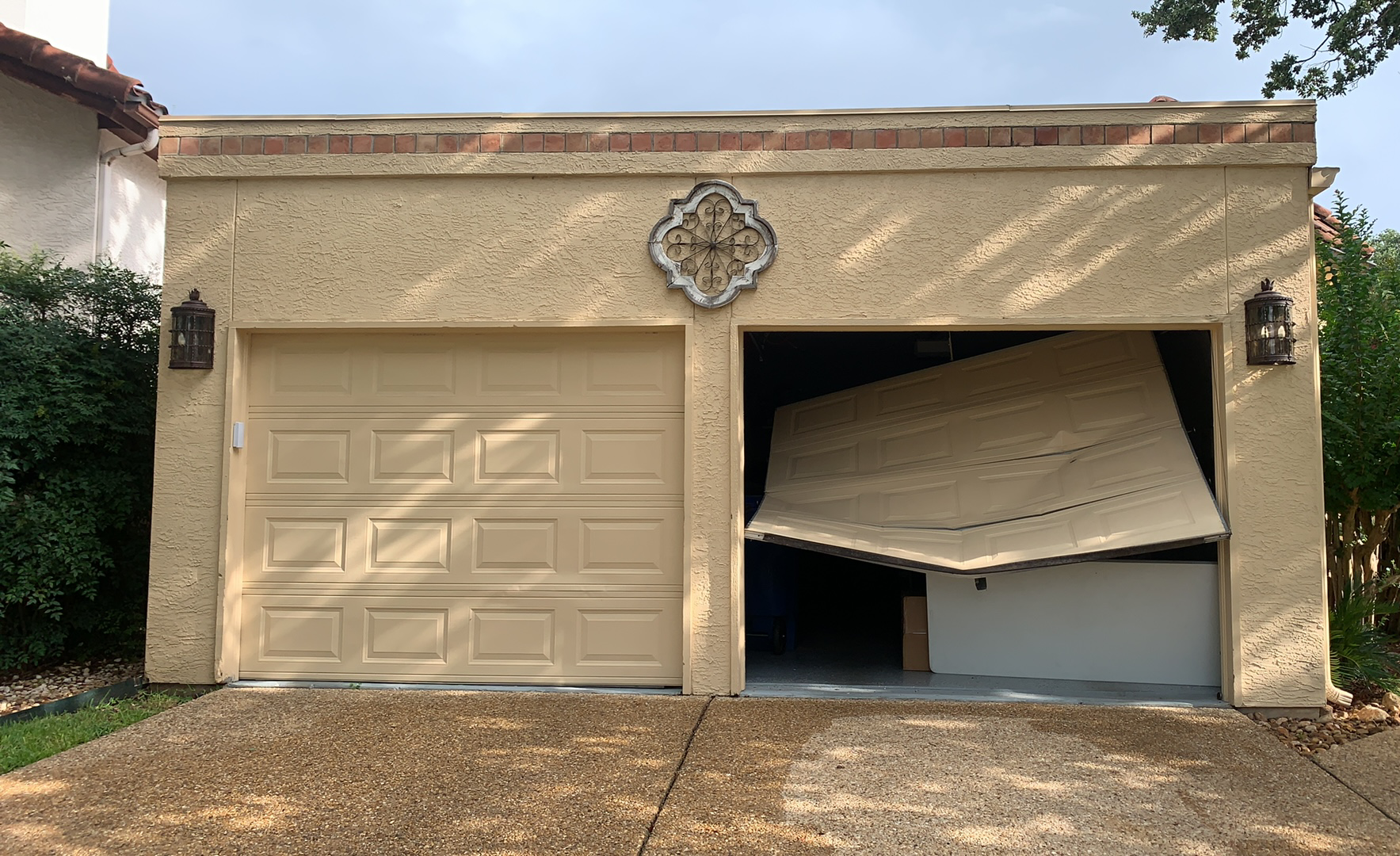
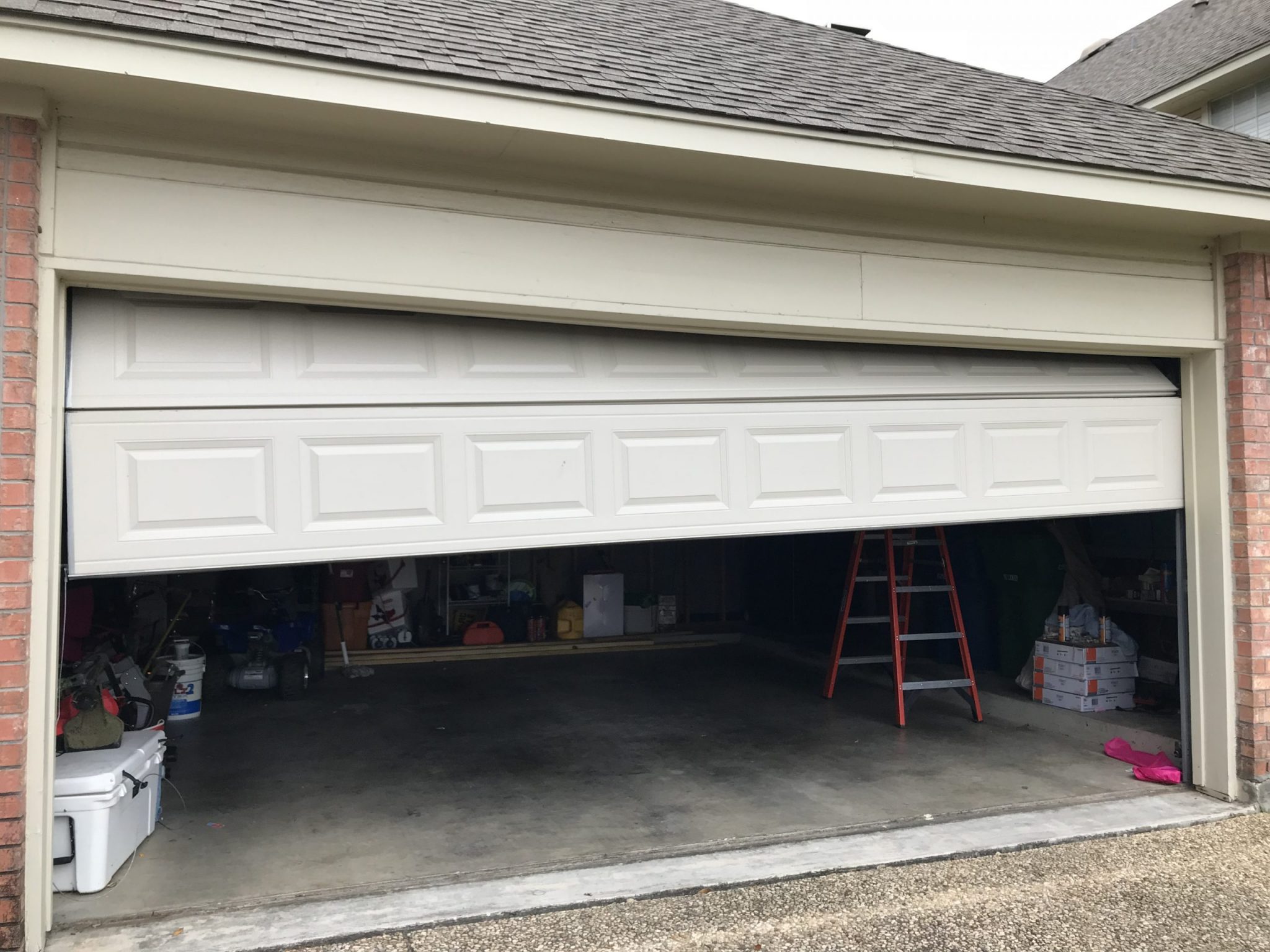
If the opener itself struggles, reverses often, or behaves inconsistently from the wall button, myQ is not the main problem. App control will not be reliable if the opener and door system are not running smoothly.
If you suspect the opener is not working in general, read Why Is a LiftMaster Garage Door Opener Not Working?.
If the door feels heavy by hand or the opener strains, repair may be needed before worrying about Wi-Fi.
LiftMaster Garage Door Opener Repair vs Installation When myQ Won’t Stay Connected
Sometimes, myQ connection problems are not really “myQ problems.” They are a sign of an older opener that does not play well with modern Wi-Fi setups, or an opener with failing electronics.
LiftMaster garage door opener repair may be the right step when:
- Wi-Fi button not responding
- Indicator lights behave oddly
- Opener memory glitches repeat
- App connects, then drops
- Hardware appears worn
LiftMaster garage door opener installation may be smarter when:
- The unit is very old
- Wi-Fi features unreliable
- Electronics failing often
- Parts are hard to source
- You want modern stability
If you are unsure, we can help you decide based on what you are seeing and how often the problem returns.
Bring Back App Control and Peace of Mind
Reconnecting myQ after a reset usually works best when you start with stable Wi-Fi, confirm you are on the right band, place the opener in setup mode, and follow the in-app steps carefully. If myQ keeps dropping offline, a weak signal in the garage is often the reason, and improving coverage is the most lasting solution.
Mojo Garage Door Service helps homeowners across San Antonio, TX restore dependable myQ control, along with LiftMaster garage door opener repair when issues go beyond Wi-Fi, and LiftMaster garage door opener installation when upgrading is the smarter long-term move. Contact us or give us a call.
Frequently Asked Questions
Why does myQ say offline, but the remote still works?
That usually means the opener is fine and the issue is Wi-Fi signal, router settings, or app pairing.
Does myQ work on 5 GHz Wi-Fi?
Many openers connect best on 2.4 GHz. If your router combines both bands under one name, we may need to connect through 2.4 GHz during setup.
What if myQ connects but keeps dropping offline?
That often points to a weak Wi-Fi signal in the garage. Strengthening coverage near the opener typically improves reliability.
Can we reconnect myQ without deleting the device?
Sometimes yes, but if the app keeps holding the old setup profile, deleting and adding again can be faster.
Should we restart the router before reconnecting?
Yes. Restarting the router can clear glitches and make reconnecting smoother.
What if the app will not find the opener?
We check setup mode timing, app permissions, Wi-Fi band, and signal strength. Any one of these can block discovery.
Does a power outage cause myQ to disconnect?
It can. Power flickers can reboot the router or opener in an unstable way, which can require a reconnect.
Will remote programming affect myQ?
Not directly. Remote pairing and myQ pairing are separate, but after a full reset, you may need to do both.
When should we reach out for help?
If reconnect steps fail repeatedly, or the opener itself is inconsistent, we can troubleshoot on-site and restore reliable operation.